

Zapier API Instructions

Instructions for Integrating Dazos CRM with Zapier
- Navigate to the Dazos CRM website and log in using your ID and password.
- Once you are logged in, you will be taken to the Dazos CRM dashboard. On the left-hand side, click on "Settings".
- In the Settings menu, click on "CRM Settings".
- From the right-sidebar, select "Integration".
- In the Integration section, select "Zapier".
- To enable the Zapier integration, check the box next to "Enable Zapier".
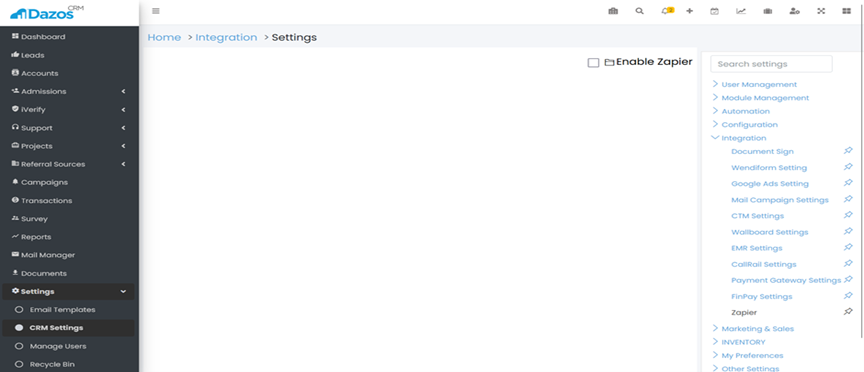
Once you have enabled the integration, you will see your "Instance Name" and "Password" displayed. This information is required to log in to Zapier.

Open a new tab in your web browser and go to https://zapier.com. Log in to your Zapier account.
In the Zapier dashboard, click on "Create Zap" from the right-sidebar.
Select the trigger or action you want to use by searching for it in the Trigger/Action search box.
To find the Dazos triggers and actions, search for "Dazos".
In the "Instance Name" and "Password" fields, enter the instance name and password obtained in step 7. Make sure to enter the information correctly.
Once you have entered your credentials, click "Continue".
Follow the prompts to set up your desired workflow.
With this setup, you will now be able to use Dazos CRM with Zapier to automate your desired workflows.

We are a software and technology company focused on providing solutions for the addiction treatment and behavioral health space, founded in 2018 by a group of entrepreneurs with a wide range of experience in the medical, behavioral health, and software development fields.
Quick Contact
951 Yamato Road, Suite 100
Boca Raton, FL 33431
Boca Raton, FL 33431
Copyright ©2018-2025 Dazos, Inc. All Rights Reserved.